Billing
View your team's current plan, change your subscription, and manage payment details.
This feature may need to be enabled for your workspace.
Overview
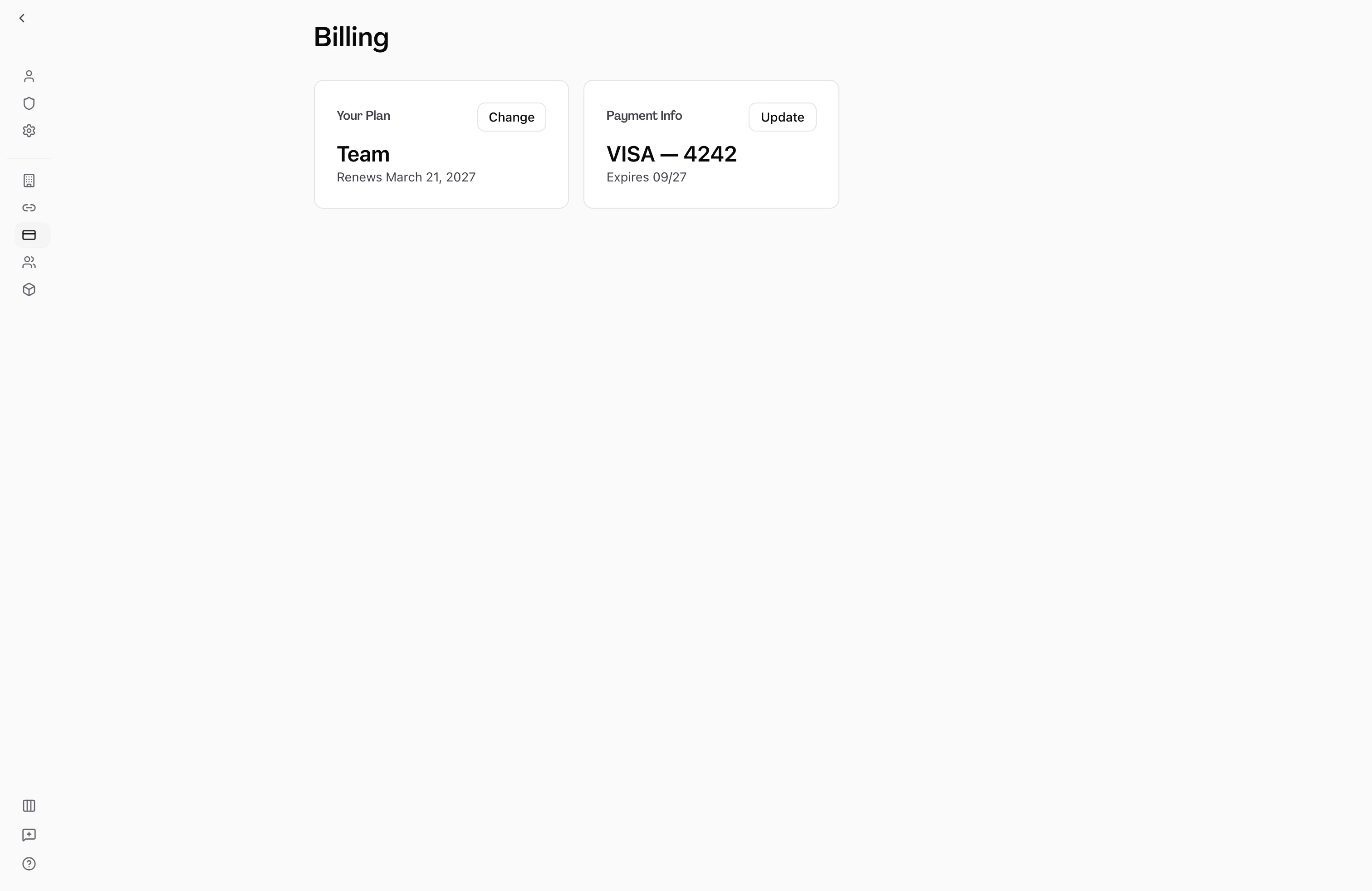
Billing in Hamster Studio is managed at the team level. Each team has its own subscription, seat count, and payment history. Team owners can open the Billing page, see the current plan at a glance, start or change a subscription, apply a promo code at checkout, and open a secure portal to update payment methods or download invoices. Members without billing access see a notice that they cannot manage billing.

Upgrade in three steps
The upgrade flow is built so a team can go from hitting the free-plan ceiling to a working paid subscription without losing the work they were in the middle of.
-
Click Upgrade. You can hit upgrade from the Billing page, from the sidebar usage widget, or from the dialog that appears when you reach a plan limit. Wherever you start, Hamster remembers the page you were on.
-
Pick your team size and confirm payment. You'll land on a secure checkout page. The Team plan is priced per creator, so you choose the exact number of seats your team needs — no fixed 5-seat, 10-seat, or 20-seat bundles to work around. Have a promo code? There's a field for it right on the same page. Billing address is collected once and kept on file for future invoices.
-
Come back to where you started. After payment, you're dropped back on the page you were working on — the brief you were writing, the plan you were reviewing, the members list you were inviting from. A confirmation lets you know the subscription is live, and the next brief is ready to create right away.
Subscription state updates happen in the background, so the paid plan is active the moment payment clears. There's no "your upgrade is processing" wait screen.
Choosing your seat count
The Team plan charges per creator seat with a 5-seat minimum. When you open checkout, Hamster starts the quantity at whichever is larger: the current number of creators on your team, or the 5-seat minimum. You can move it up or down from there inside the payment page.
- Adding a seat later is the same flow — the per-seat quantity is adjustable any time through the billing portal, and changes mid-cycle are prorated.
- Viewer seats stay free and don't count toward your creator count.
- Only creators count. Reviewers and viewers never consume a paid seat, so inviting feedback collaborators never pushes you into a higher bill.
Available plans
Hamster Studio offers three plan tiers for teams:
| Plan | Who it's for | Creator seats |
|---|---|---|
| Free | Individuals exploring Hamster Studio | 1 |
| Team | Teams shipping with shared ownership | 5 minimum, add more as you grow |
| Enterprise | Larger organizations needing compliance, SSO, and dedicated support | Custom |
The Team plan is available on monthly or annual billing — annual saves roughly two months compared to monthly. Enterprise plans, including pricing and seat counts, are set up directly with our team rather than self-serve. All plans include unlimited viewer seats.
Live pricing for every plan is shown on the pricing page.
What's included
Free
- 1 creator seat
- Unlimited viewer seats
- Free briefs up to the monthly cap
- Initiatives
- Frontier models
- Community support
Team
- Per-seat pricing with a 5-seat minimum
- Unlimited viewer seats
- Unlimited briefs
- Strategies and goals
- Skills and methods
- Approval and readiness flows
- Team-level visibility
- Email support
Enterprise
- Everything in Team
- Multiple teams under one organization
- Higher file storage limits
- SSO and advanced security
- Priority support with response SLA
- Full analytics dashboard
- Custom integrations
- Audit logs
- Dedicated success manager
Promo codes
If your team has a promo code — from launch week, a referral, or a partnership — enter it on the checkout page. The discount applies before you confirm, so you can see the adjusted price before committing.
First-time promos apply once per workspace; once you're on a paid plan, promo callouts are hidden across the pricing surfaces so nobody on the team gets confused about pricing that no longer applies. Eligible codes can still be entered at checkout when you change plans or switch billing intervals.
Managing an active subscription
Once your team has a subscription, the Billing page shows the current plan, pricing, and billing interval. Lifetime orders (if applicable) appear in a separate card. From there, owners with billing access can:
- Change plan opens the plan picker in-app. Pick a plan and interval — monthly or annual — and the price shown matches the live pricing on your account. Confirm and we send you straight to checkout.
- Manage billing opens the billing portal in a new window. You can update payment methods, view and download past invoices, switch between monthly and annual billing, change seat counts, or cancel.
- Cancellation is handled inside the billing portal. Cancellations take effect at the end of the current billing period — you keep access until then, and your data stays in place if you come back.
To move to Enterprise, talk to our team — Enterprise is set up with a tailored configuration and isn't a self-serve switch from the Billing page.
Permissions
Billing access is gated by the billing management permission within your team. By default, only team Owners have it; admins, creators, and reviewers do not. If you need billing access but cannot see the page, ask a team owner to grant the permission or transfer ownership.
Only the team owner can change team ownership. Billing access does not require ownership — it is a separate permission that owners can grant to other members. See Roles and Permissions for the full role matrix.
When you hit a plan limit
Hamster Studio tells you the moment your team is about to outgrow its plan. When you try an action that would exceed your plan — inviting a teammate past the seat cap, creating a brief past your monthly allowance, or asking Hamster a question when you're out of brief credits — an upgrade dialog appears at that exact moment, with a one-click path to a higher plan. Your draft, invite, or message stays in place; you upgrade and pick up where you left off.
For the day-to-day detail on each limit, see Plan limits and upgrades.
When your team runs out of briefs
If your team uses every brief included in your plan for the month, the teammate trying to create a new brief sees an upgrade prompt. At the same moment, every teammate on your team with the billing management permission receives an email letting them know the cap has been reached, with a direct link to this page. One person upgrades, the cap lifts, and the team keeps shipping.
For the full details — who gets the email, when it resets, and what the email contains — see Brief Quota Notifications.
Tips
- Annual billing saves roughly two months compared to monthly. You can switch to annual in the billing portal at any time; the discount applies at your next renewal.
- Invite reviewers for free. Stakeholders who only read and comment don't need a creator seat.
- Seats scale with the team, not the other way around. Start at the 5-seat minimum and bump up when a new creator joins — you're never forced into a fixed bundle you've outgrown.
- Trial offers (if your team is eligible) appear during checkout. No separate signup flow.
- Invoices are one click. Open the billing portal to download any past invoice as a PDF.